
Why does Chrome only let one new tab extension work at a time?
By Mutables, who make Hallway. Updated
Short answer
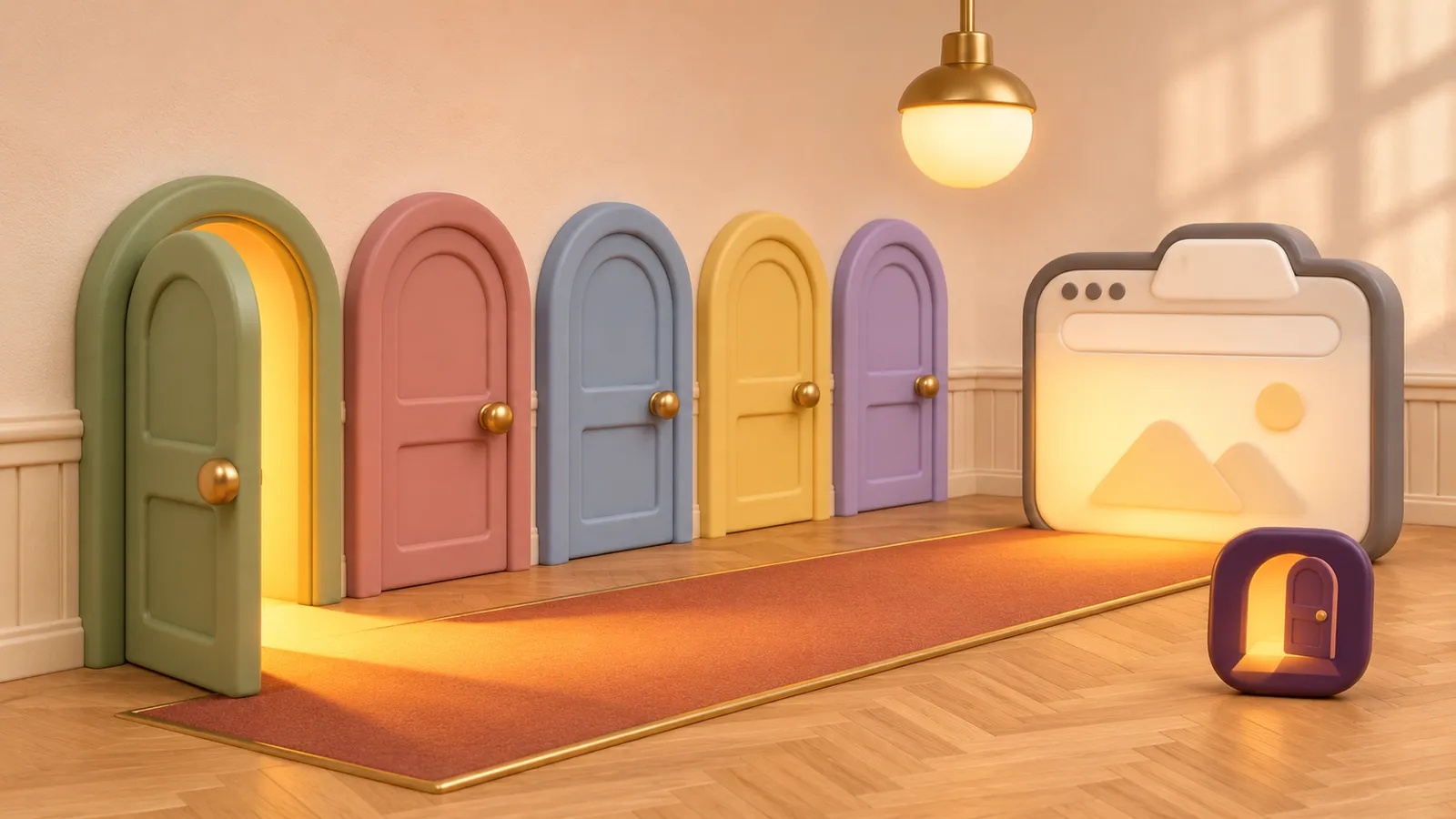
Chrome has one new tab page, so when several extensions want to replace it, only one gets it: the one you installed last. The others stay installed but do nothing on a new tab. To show a different one, turn the others off, by hand at chrome://extensions or in one click with Hallway.
Why only one can win
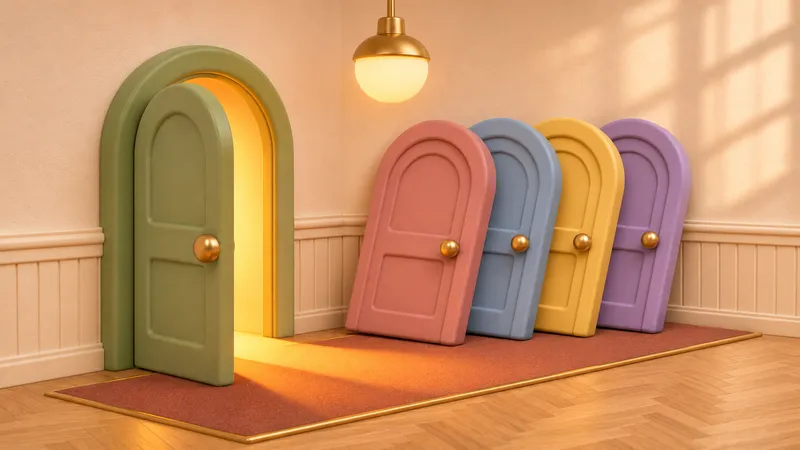
A new tab extension works by replacing the page Chrome opens when you press CtrlT. That page is the same in every window, so Chrome has to choose one replacement, and it chooses the extension installed most recently. There is no setting to choose among them.
The extensions can’t sort it out between themselves either. A new tab extension has no way to step aside for a while, which is why people end up turning one off to see another.
In our tests, turning the losing extension off and on again didn’t make it win: Chrome kept the new tab with the one that had it. What works is having only one of them on.
What Chrome can do on its own
Chrome has no picker for new tab extensions, but you can choose by hand.
- Chrome
Open chrome://extensions and turn off every new tab extension except the one you want. To change later, turn that one off and the next one on. Turning an extension off keeps its settings.
- Chrome
With every new tab extension off, Chrome’s own new tab page comes back.
- Profiles
Each Chrome profile keeps its own extensions, so a work profile and a personal profile can each show a different new tab extension.
With Hallway
How to pick which one opens
- Add Hallway to Chrome. It asks Chrome which of your extensions replace the new tab page and lists them, whatever they call themselves.
- Click the Hallway button in the toolbar and pick one. Hallway turns it on and turns off the other new tab extensions in your list.
- Press CtrlT. The new tab opens your pick, as if it were the only one installed.
- To go back to Chrome’s own page, pick Chrome default at the end of the list.
Worth knowing
- Hallway doesn’t sit in the new tab itself. It only turns extensions on and off, so the page you see comes straight from the extension you picked, with no redirect.
- Your other extensions are left alone, and Hallway never turns off one your organization manages.
- Install another new tab extension later and Chrome gives it the new tab. Hallway adds it to your list and offers one click back to the one you had.
- Hallway works in Chrome and Microsoft Edge. Firefox only lets extensions turn themes on and off, so Hallway can’t work there.
Questions
Which new tab extension wins in Chrome?
The one you installed most recently. To make another one show, turn the others off.
Can I have two new tab extensions on at once?
Both can be turned on, but only one shows on a new tab. The other does nothing until the first one is turned off.
Does turning a new tab extension off delete its settings?
No. Turning an extension off leaves its settings in place, so they are there when you turn it back on.
Does turning one off and on again make it win?
Not in our tests. Chrome kept the new tab with the extension that already had it. Turning the others off is what works.
Related guides
-
 How do I switch between new tab extensions without turning them on and off? Switch which new tab extension opens without a trip to chrome://extensions: one click in the toolbar, a keyboard shortcut or a right-click menu.
-
 Can I use Momentum and another new tab extension together? Momentum and another new tab extension can’t share the new tab. Keep both installed and take turns in one click, with their settings kept.
-
 Why did my new tab page change by itself? A new extension, one turned off, or an update waiting for your OK can change your new tab. How to find the cause at chrome://extensions and set it back.
Step into your Hallway.
Keep every new tab you love, and open the one you want.